
FBR and PRA e-invoicing
FBR POS integration that lives in the till, not beside it
Every paid order becomes a fiscal invoice with the authority's number and a QR code on the receipt. Filing works through an outage, every submission has a status, and one account can file to FBR, PRA, SRB, KPRA and BRA branch by branch.
The requirement
What FBR and PRA actually ask of a restaurant
FBR's point-of-sale integration for Tier-1 retailers and the Punjab Revenue Authority's e-invoicing both come down to the same thing at the counter: every sale has to be reported to the authority as it happens, and the receipt has to carry the invoice number the authority returns and a QR code the customer can scan to check it. The sales tax itself is nothing new; the reporting is.
Most restaurants meet the rule with a second system: a fiscal device or a separate FBR POS beside the real till, with staff re-entering every bill into it. That doubles the keystrokes on a busy night, and the two systems drift apart by the end of the month. The receipts carry a number but the figures do not match, and the gap shows up in an audit.
EasAlpha treats the fiscal invoice as part of the order. When an order is paid, the same record that prints the receipt and updates stock is also submitted to the authority, and the number and QR come back onto that receipt. There is one system, one set of figures, and one place to look when something is rejected. The plan comparison is on the pricing page, and tax sits with the rest of the money features on the features page.
How it works
Four steps, none of them at the counter
Set up once per branch, then the till does the filing on every paid order.
1. Register the branch
In Settings, pick the authority for the branch (FBR, PRA, SRB, KPRA or BRA), enter the NTN, the POS ID the authority issued and the access token. Each branch has its own registration.
2. Sell as usual
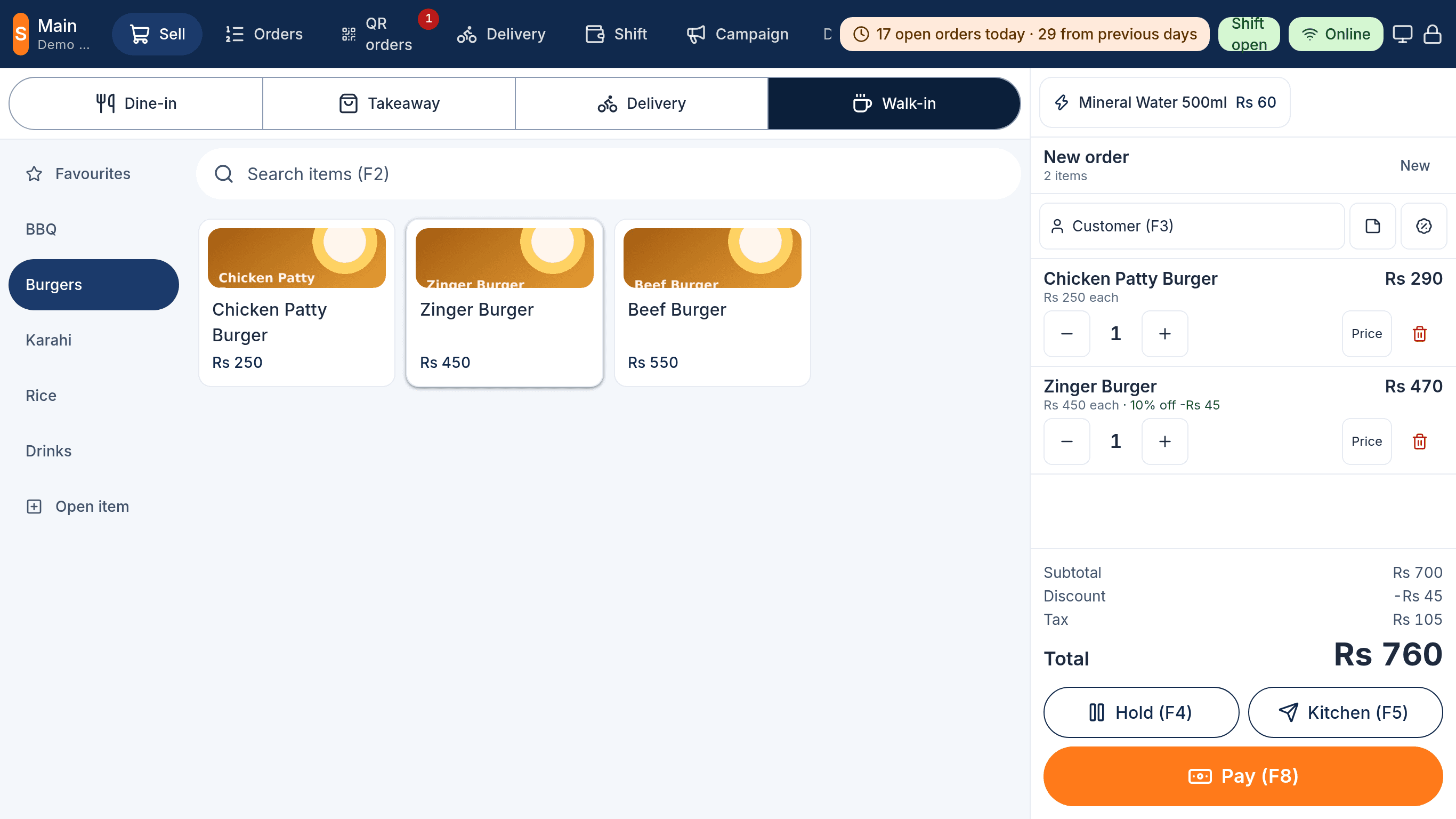
Nothing changes at the counter. When an order is paid, EasAlpha builds the invoice from the order's lines, taxes and payment and submits it. The cashier never types anything twice.
3. Number and QR on the receipt
The authority's invoice number comes back and prints on the receipt with the QR code the customer can scan to verify it. The number is stored against the order for the reports.
4. Watch the queue
Tax Invoices in the admin panel lists every invoice as queued, sent, accepted, failed or skipped, with the authority's reply when it rejects one, so a wrong NTN or an expired token is caught the same day.
Outages
Filing that survives load-shedding
A fiscal rule that only works online would stop sales every time the line drops. EasAlpha completes the sale offline, queues the invoice with the order, and submits the queue in order when the connection returns. Submissions that fail are retried with a growing delay, up to 50 attempts, and nothing is marked done until the authority accepts it.
- The sale, receipt and stock deduction never wait for the authority
- Queued and failed invoices retry on their own; the status screen shows which are still waiting
- A reprint carries the QR once the number has arrived
Tax rates
Tax the way the authority wants it, before the filing
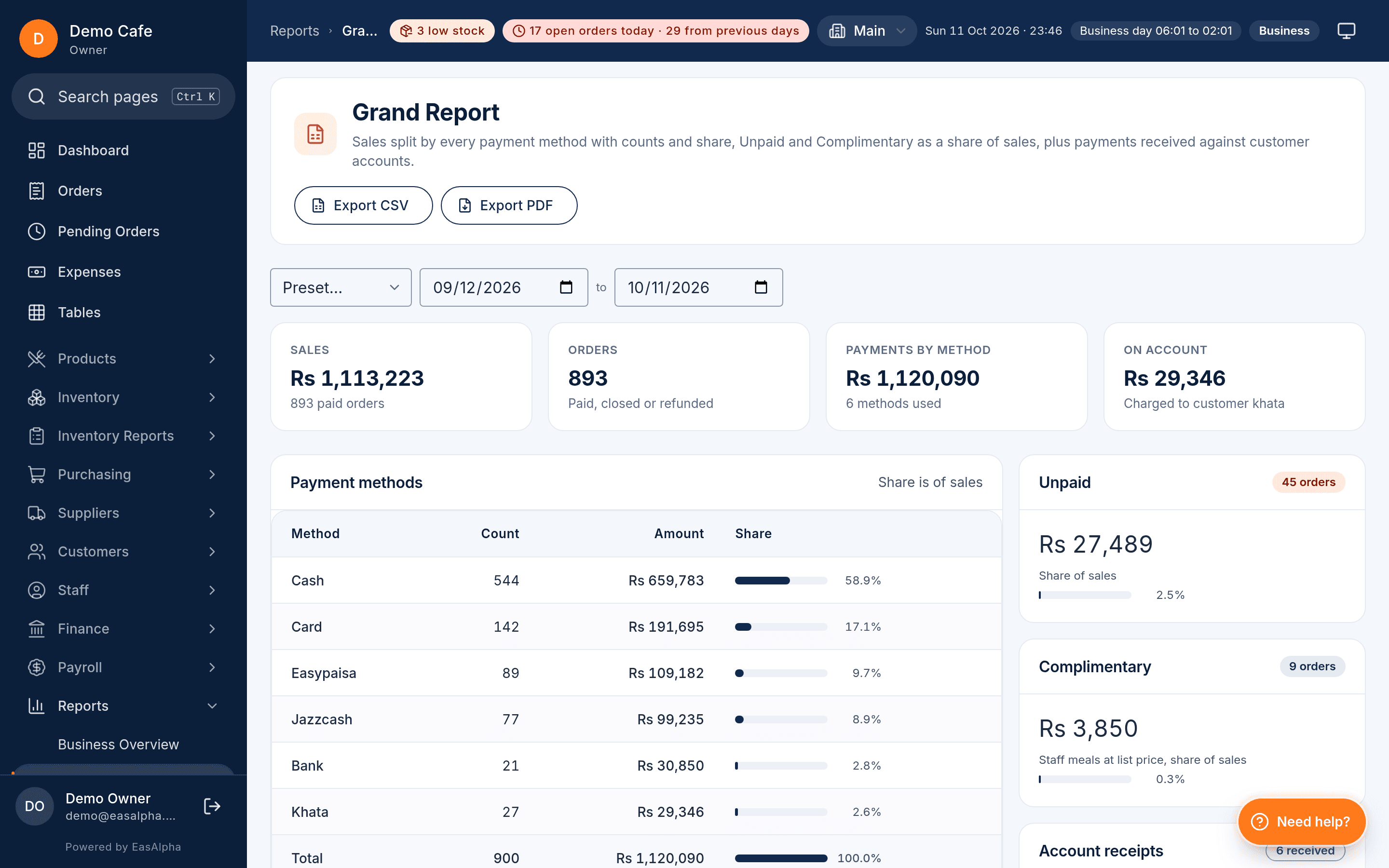
The invoice is only as right as the tax on it. Rates can be set per item or per category, inclusive or exclusive of the price, and per payment method, so a card sale and a cash sale can carry different rates where the province asks for that. The Grand Report then ties sales, discounts, tax and payments together to the rupee.
- Rates per item, category or payment method, inclusive or exclusive
- The receipt shows the tax lines and the registration details of the branch
- 27 reports, with the Grand Report reconciling tax against payments
Honest limits
What the integration does not do
It does not register you with the authority. Getting the NTN, the POS ID and the token is still paperwork you do with FBR or the provincial authority, and we will tell you exactly which fields to ask for. It does not file your monthly return; it gives you the invoice-level data the return is built from, exportable to CSV and PDF from the reports. And it does not invent a number when the authority is unreachable: the invoice waits in the queue, visibly, until the authority answers. A fiscal number is the authority's to issue, not ours.
If you are moving from another POS that already files, the orders you bring across keep their history and the filing starts from the first sale on EasAlpha. Talk to us before the switch and we will walk through the registration for each branch, or start the 90-day trial and try the sandbox mode on your own menu first.
Questions
About e-invoicing
Hardware, outages, provinces, testing and plans.
Do I need a separate FBR POS machine or fiscal device?
What happens to invoices when the internet is down?
Can branches in different provinces file to different authorities?
How do I test before going live?
Which plan includes e-invoicing?
File every invoice from the till you already use
Set up a branch, enter the registration and watch the first sandbox invoice print. 90 days free, no card.
- 90-day free trial
- No card needed
- Set up in a day
Related
Keep reading
- Offline POS systemWhat the till does with no internet, how the queue syncs in order, and what Needs Attention catches.Read the guide
- An ArfaPOS alternativeA fair, feature-by-feature comparison with the prices both products publish today.Read the guide
- Kitchen display systemTickets per station with timers, bump and alerts, plus the token screen guests watch.Read the guide